FAQ

Microphone Setup for Nixi AI Scribe

Quick Check (30 Seconds)

Before changing settings, try these simple fixes:

  1. Check Connections: Is the microphone physically plugged in? Try unplugging and replugging it (USB).
  2. Check Mute Button: Is there a physical mute button on your headset or cable? Ensure it is unmuted.
  3. Close "Thief" Apps: Apps like Teams, Zoom, or Dragon often "steal" the microphone. Quit them completely.
  4. Refresh: Reload the page or restart your browser.
Browser Permissions (Most Common)

Step 1: Allow Microphone in Google Chrome

If Nixi says "No microphone found," Chrome is likely blocking it.

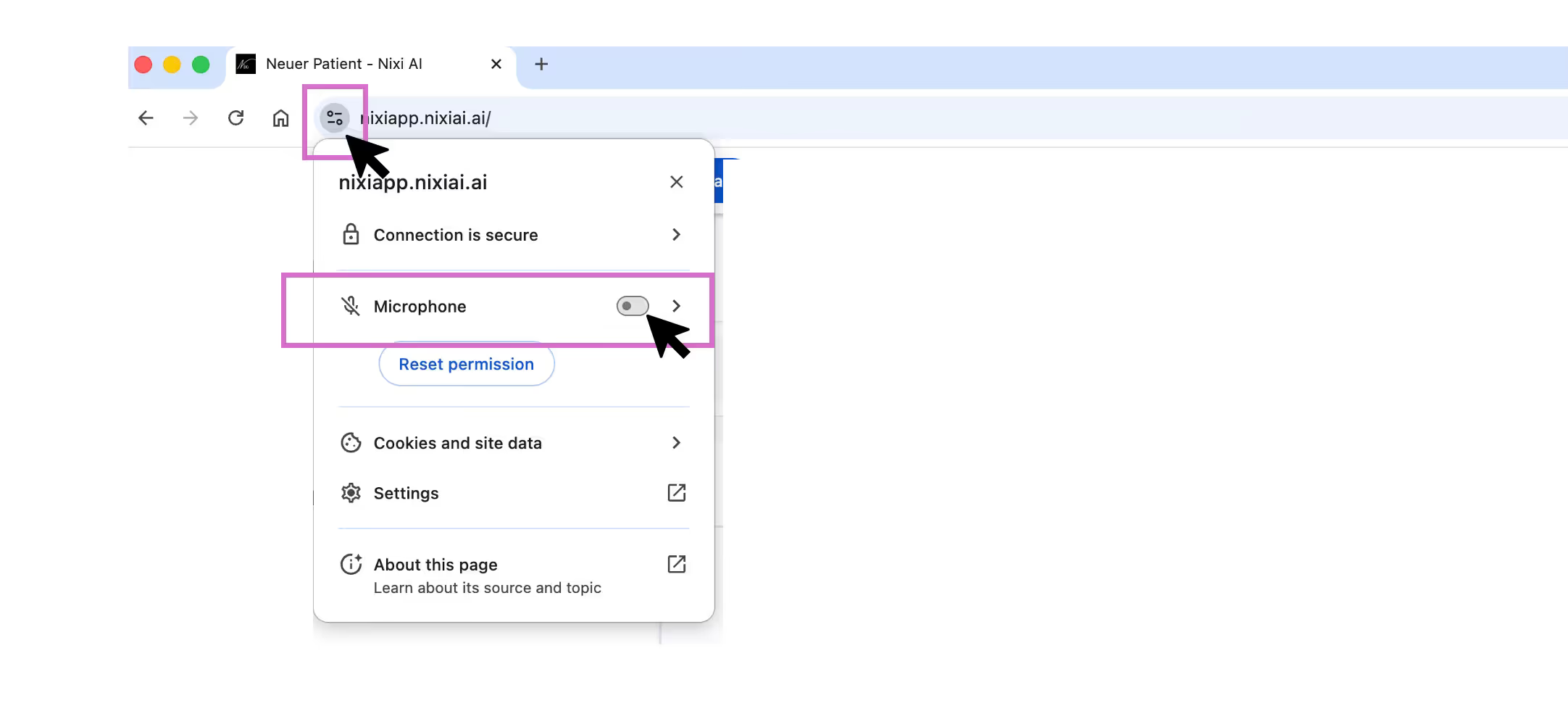
  1. Click the Settings Slider icon or Lock icon in the URL bar
  2. Toggle "Microphone" to Allow
  3. Reload the page
Nixi AI error message showing no microphone found during setup.Google Chrome address bar permission settings showing how to allow microphone access for Nixi AI.

If there is no microphone option in chrome settings

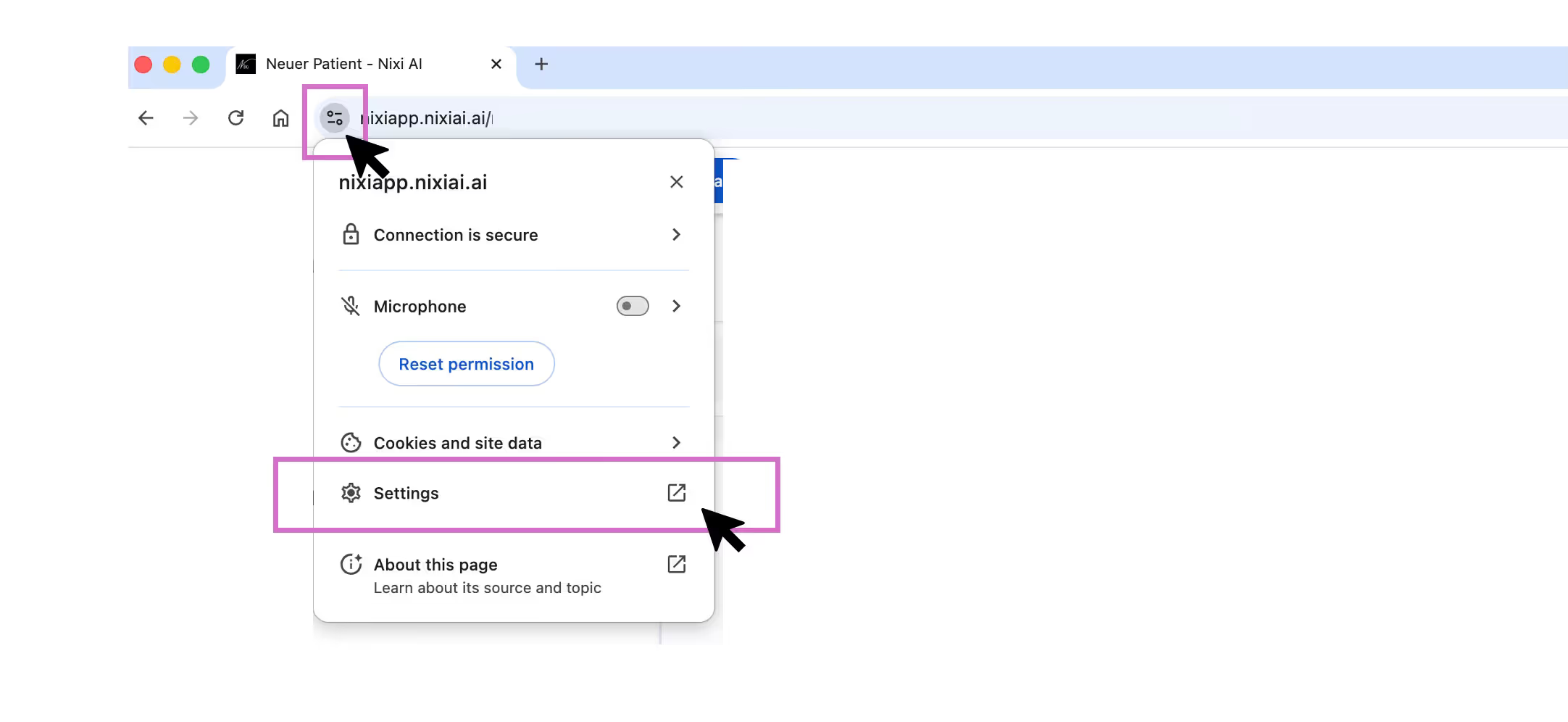
  1. Open Site settings. ‍
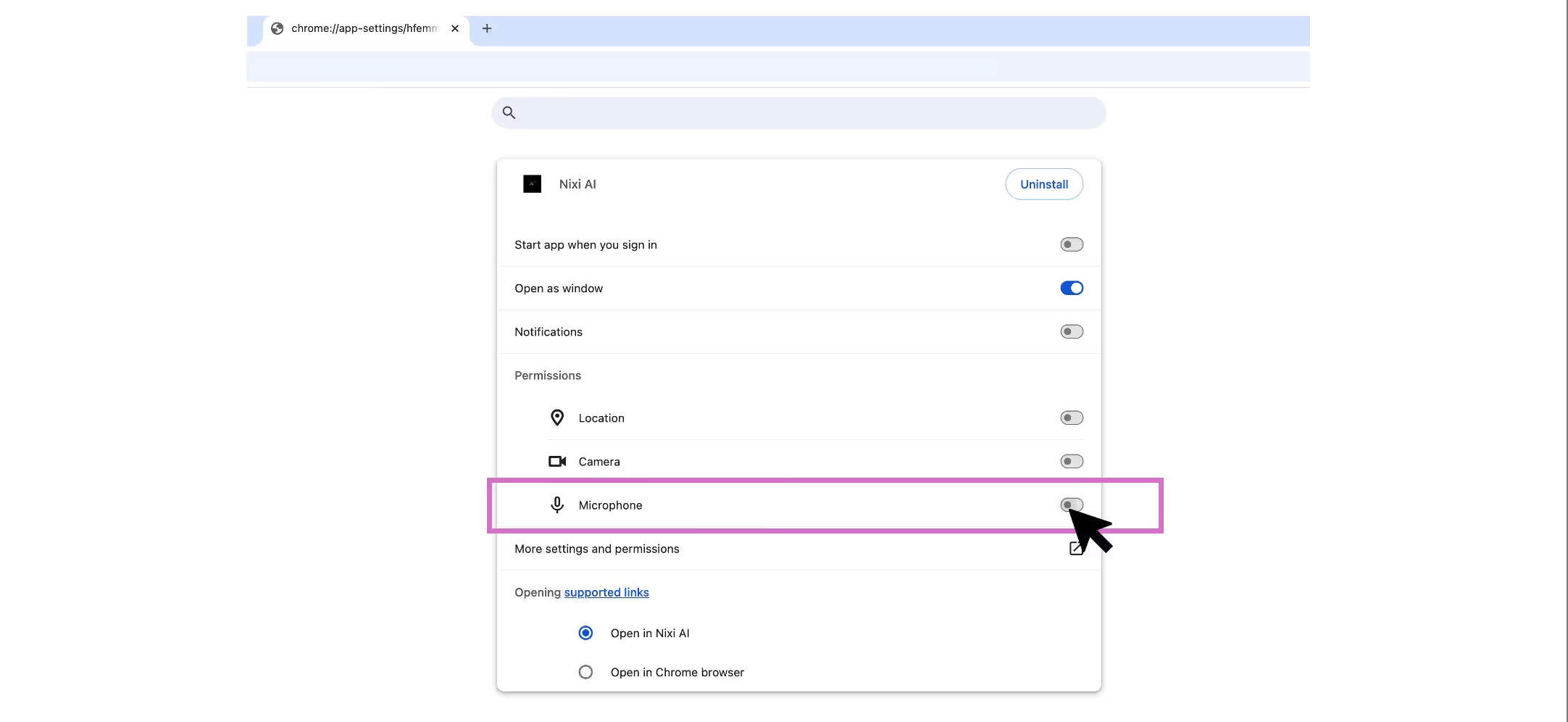
  2. Set Microphone β†’ Allow
  3. Reload the Nixi tab
Clicking the settings icon in Chrome address bar to open full site settings for Nixi AI.
Google Chrome site settings page showing the microphone permission toggled to on.
System Privacy Settings

Step 2: Check Windows & macOS Privacy Settings

Even if Chrome is allowed, your computer's operating system might be blocking the browser globally.

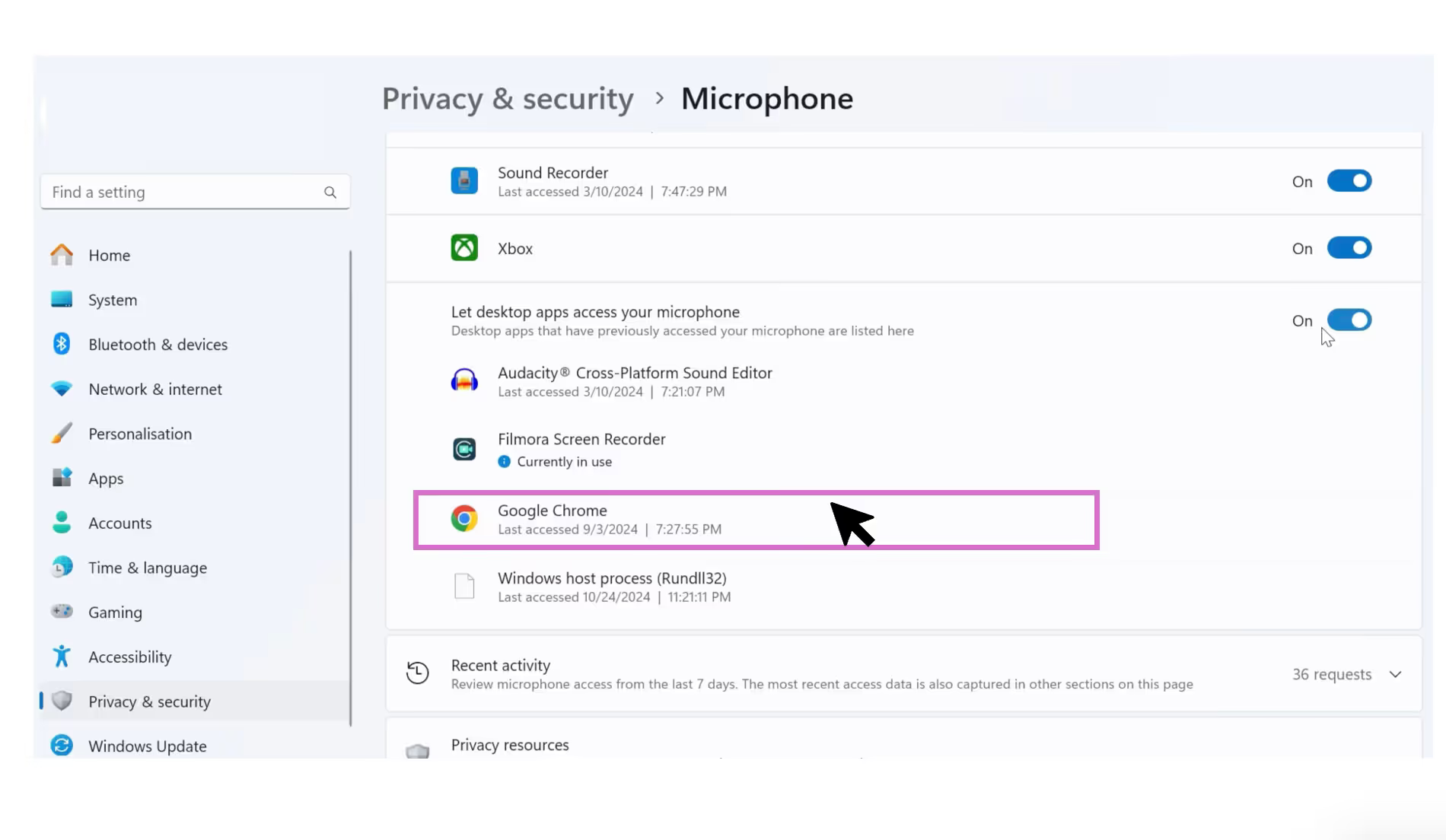
For Windows users

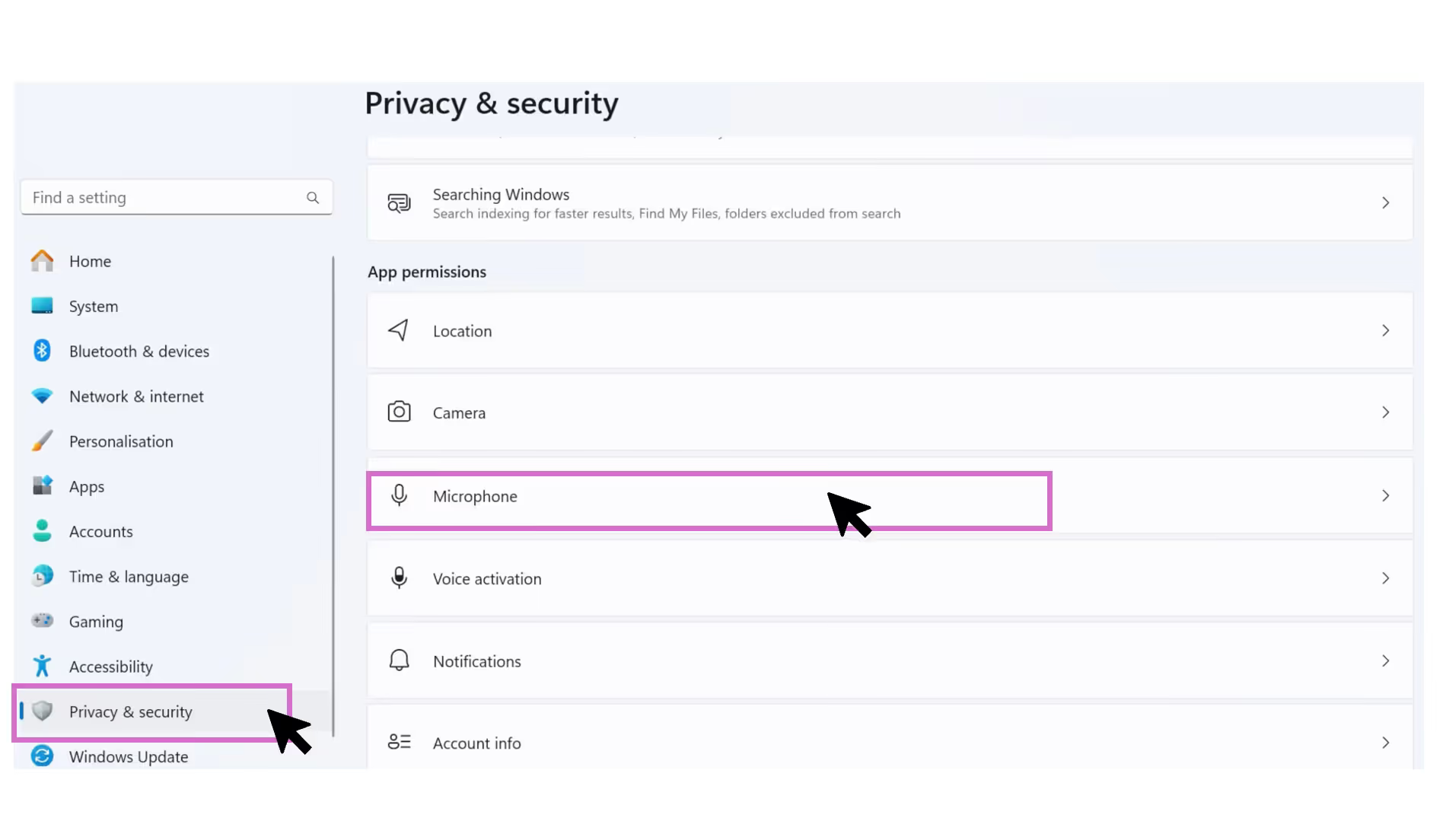
  1. Press the Windows Key and search for "Microphone privacy settings"
  2. Ensure "Let apps access your microphone" is turned ON.
  3. Scroll down to "Let desktop apps access your microphone" and ensure Google Chrome is listed and ON.‍
  4. Restart Chrome and open Nixi AI again
Windows 11 privacy and security settings ensuring desktop apps like Chrome have microphone access.

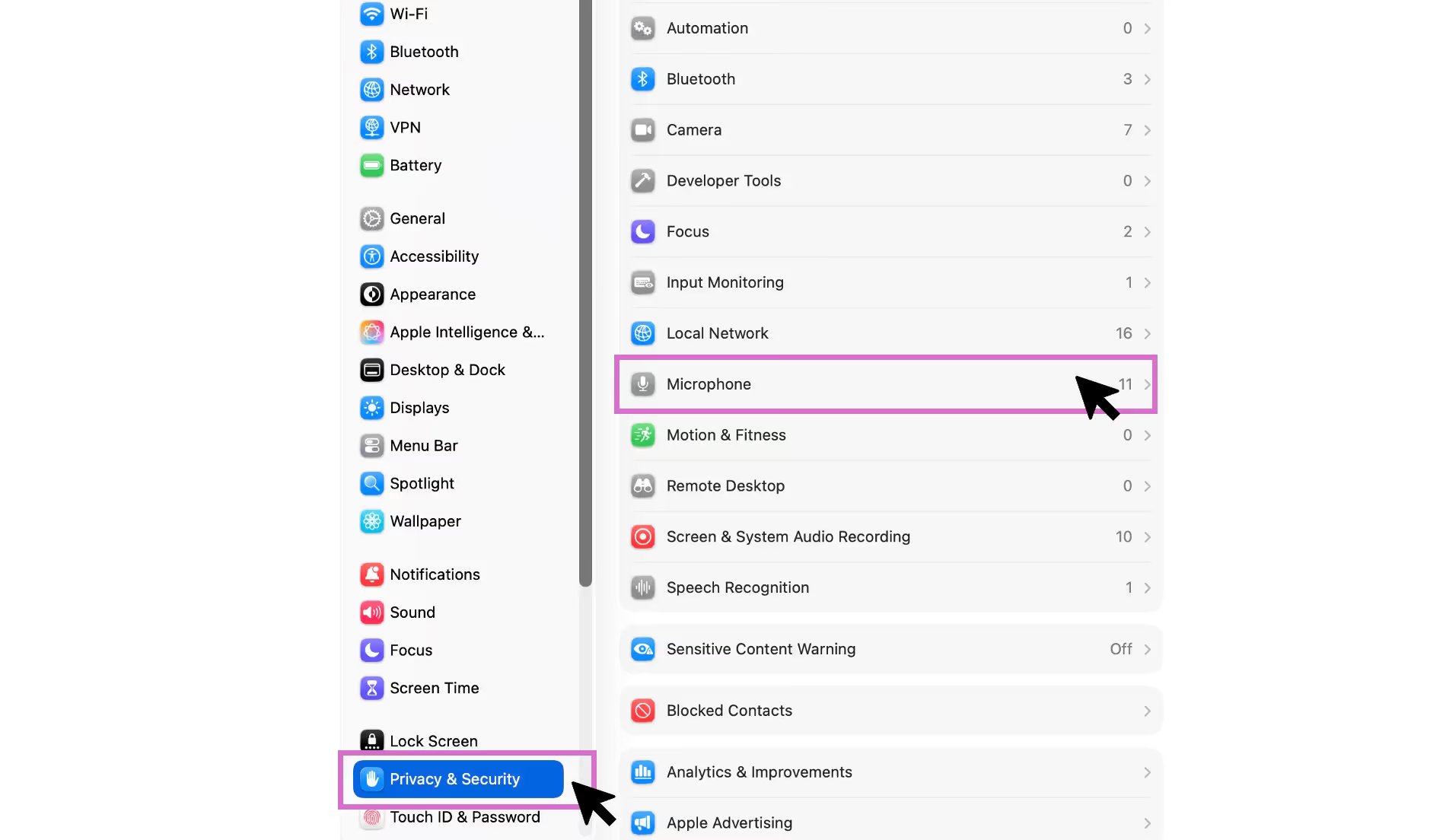
for Mac users

  1. Go to System Settings > Privacy & Security > Microphone‍
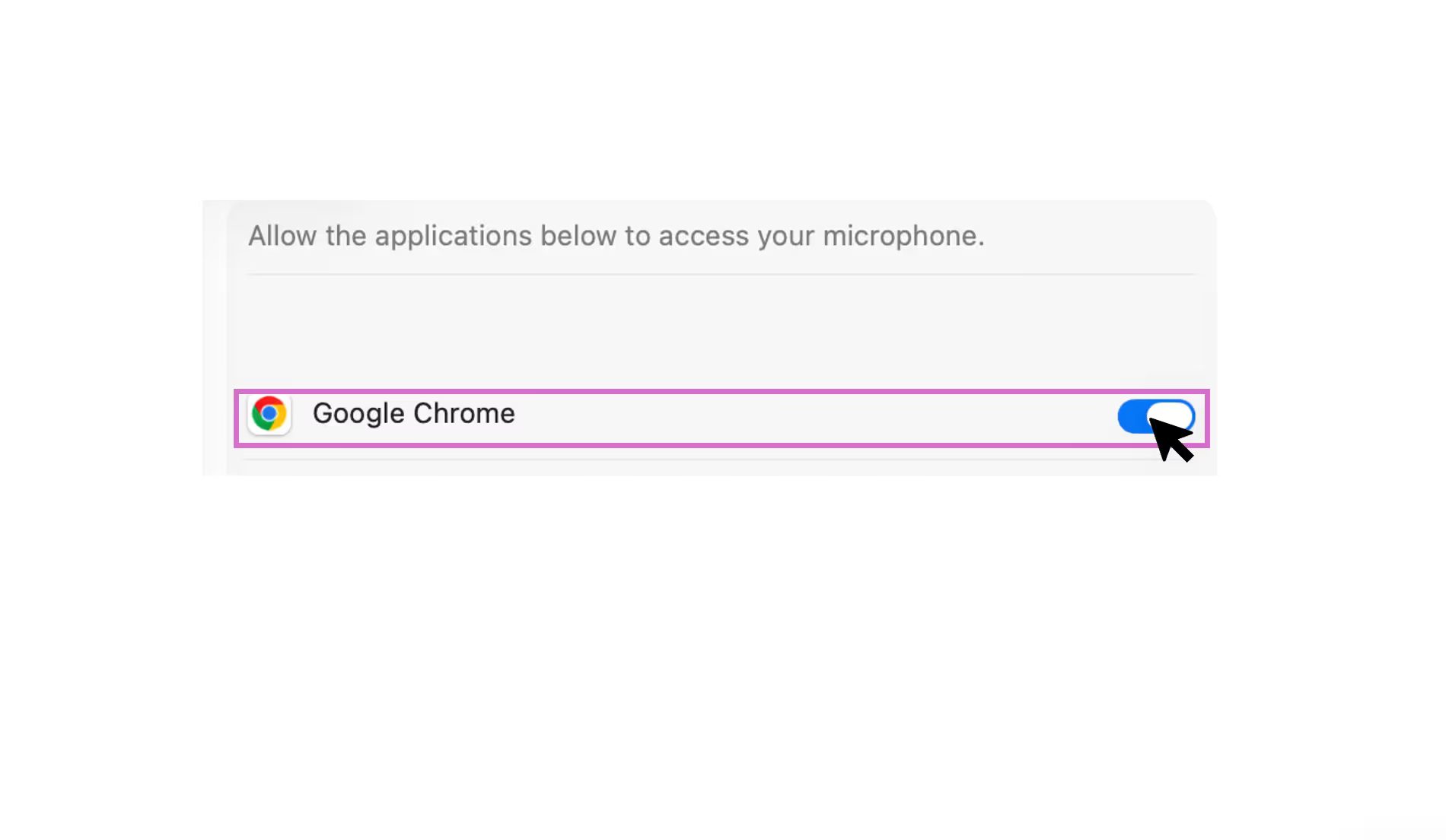
  2. Find Google Chrome in the list.
  3. Ensure the toggle is Blue (Active).
  4. Restart Chrome and Open Nixi AI again.
macOS System Settings under Privacy and Security showing Google Chrome microphone access enabled.
Remote Desktop / RDP (Advanced)

Step 3 (IT / advanced): Enable "Audio Recording Redirection" in RDP

If Nixi works in your local Chrome, but the remote session shows no audio device, your remote environment is blocking mic input.

  1. Server-side (GPO): Computer Configuration β†’ Administrative Templates β†’ Windows Components β†’ Remote Desktop Services β†’ Remote Desktop Session Host β†’ Device and Resource Redirection β†’ Enable "Allow audio recording redirection"
  2. Client-side (RDP settings): Remote Desktop Connection β†’ Local Resources β†’ Remote audio β†’ Settings β†’ Select "Record from this computer"

‍

If it still doesn't work

Send us screenshots of:

  1. Nixi mic dropdown
  2. Chrome mic permission page
  3. chrome://settings/content/microphone

…and we'll help quickly.

βœ‰οΈ Hello@Nixiai.ai